





If you have ever successfully managed an active WhatsApp group with more than 100 people, you already know the importance of birthday messages. People remember when they were celebrated, and they definitely notice when they weren’t.
Since each member fills out a biodata form when they join my group, I already have all their details in a Google Sheets spreadsheet, including names, birthdays, and other useful information. My daily routine involved opening a sheet, scanning the current date, finding a matching row, pulling relevant details, writing a personalized message, and posting it to the group. On a good day, this process takes about ten minutes, but on a busy day, not at all.
Automation was the obvious next step, but I assumed it would come at a cost. It turns out I was overlooking something very simple, because Google Sheets already had everything I needed.
Converting Google Sheets into a Birthday Assistant
A mix of templates, scripts and a little help from Gemini
A quick search for “automate WhatsApp birthday messages” will send you down a rabbit hole of paid tools and integrations. You’ll find apps that sync with WhatsApp Business, promise scheduled messaging, and offer slick dashboards, all for a monthly fee. I explored a few of them, and the limitations became immediately apparent.
First, they only worked with WhatsApp Business instead of the normal WhatsApp that most people use. Second, they were designed for one-on-one messaging, not group posting. Third, none of them were free.
At that point, I turned my focus to Google Workspace, which I already had access to. The setup I ended up with relies on three dynamic parts: a message template in Google Docs, a Google Sheets script to handle the logic, and an Apps Script trigger to run everything automatically.
I started by creating a birthday message template in Google Docs, using placeholders for details I wanted to extract from the spreadsheet, such as the member’s name, cadre, phone number, or another personal contact. It works like a mail merge, but instead of creating letters or emails, I’m creating WhatsApp messages.
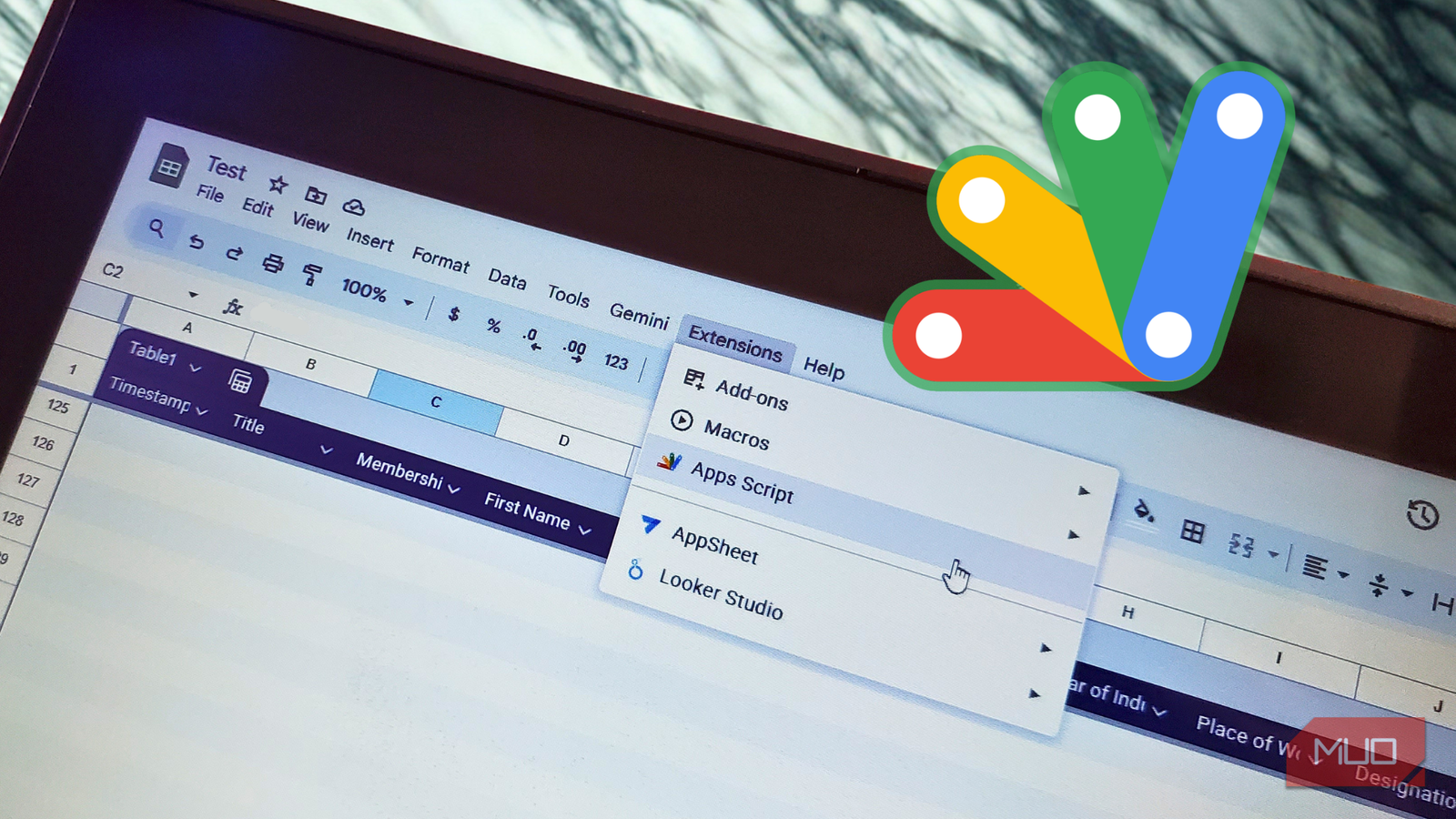
Next, I opened my Google Sheets spreadsheet, already connected to the Google Form to collect member data, and navigated to Extensions Tab for access Apps script. Since I’m not a developer, I relied on Google Gemini to help me write the code. I prompted the AI tool with a clear explanation of what I wanted: every time the script runs, it should check the spreadsheet for any birthdays that match the current date. If he finds one, he should make a copy of the master template document, replace the placeholders with that member’s details, save the new document to a specific folder in Google Drive, and email it to me so I know it’s ready. This is the code I got from Gemini:

| 
| 
|
I didn’t have to make any modifications to the generated code, although I’m not sure I would have been able to modify it myself. If you have some coding experience, you’ll have an easier time tweaking things. Even if you don’t, you can still get solid results as long as you clearly define what you want the code to do. Gemini handled it well for me, but you can use Claude, ChatGPT, or another AI chatbot to build your own.

I asked Claude, Chat GPT, and Gemini to create a simulation, and a winner was clear.
The LLM race soon ceased to be a close contest.
Once Apps Script opened the default Code.gs file, I cleaned up its contents and pasted it into the generated script. To make everything work, I need to enter two key IDs: the document ID from the Google Docs URL (the string between “/d/” and “/edit”) and the folder ID from the Google Drive folder URL (the string after “/folders/”). After adding them, I clicked save the project. run.
The first time you run a script, Google will ask you to give it permission. You have to pass. Review permissions.then Advancedand finally select go to [Project Name] (unsafe) Prior to approval of required permissions. Every script permission is required for it to function properly, so it’s important not to leave any of them.
Keeping workflows on autopilot
Schedule it once, and you’ll never have to think about it again.
With the code tested and working, the final step was making sure it ran daily without any input from me. In the Apps Script sidebar, I clicked Motivations option (alarm clock icon) and selected. Add a trigger.. From there, I set the event source. Time drivenchose one. Day timerand chose a window in the middle. 9am and 10am. After saving these settings, everything was in place.
Now, every morning within that time window, the script runs in the background. If that day is a birthday, a new document appears in my designated Drive folder, and I receive an email notification. At this point, all I need to do is open the document, copy the pre-filled message, and paste it into the group. The whole process takes less than a minute.
You probably don’t even need another app.
Google Workspace becomes much more powerful when you start connecting its different parts, and the barrier to entry is lower than it might seem. In most cases, all you need is a Google Account, which you can create without a phone number, to get started.
You don’t need to be a developer to do this. You need enough curiosity to explore the tools you already have. If you’re managing any type of community where member data already resides in a spreadsheet, there’s a good chance the next useful automation you’re looking for is already within reach.