





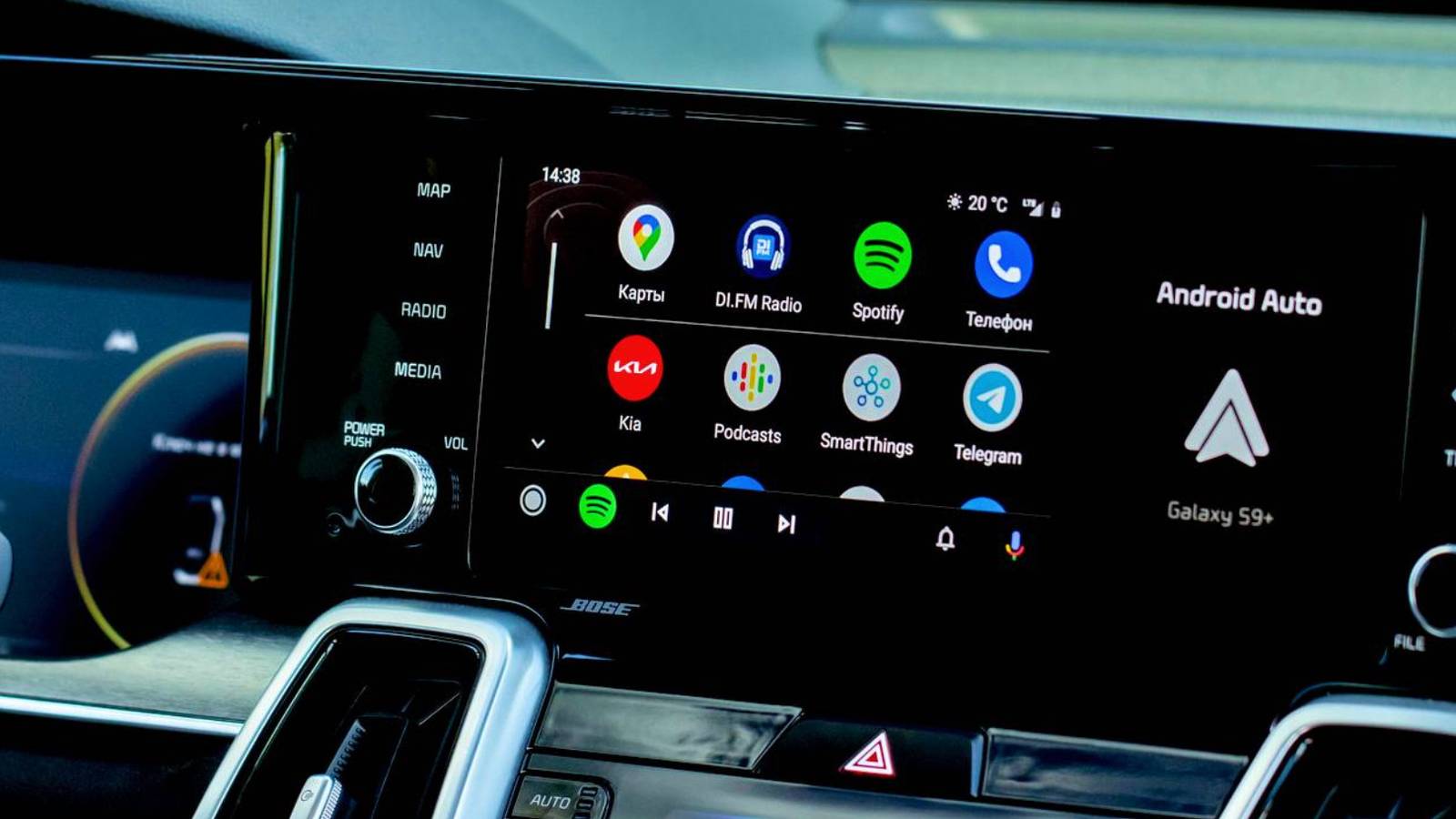
You might think Android Auto is just an app that runs on your car’s screen. It is actually an interface that is presented on the dashboard from your phone. My app used to lag a lot before I realized it was due to more on my phone than the vehicle I was using or just a wireless signal. Once I started focusing on my phone instead of messing around with my car’s settings, the interface became much faster.
Your cables need to do more than charge.
Don’t budget on your car cables.
Most people think any USB-C cable will work for their car, but there’s more to it than connecting your Android to your car’s audio system. I thought the same and used a cheap charging cable until I learned how Android Auto handles high bandwidth data. Instead of sending basic coordinates to your dashboard screen, your phone produces a continuous video stream while simultaneously running heavy applications like maps and music players.
This is a heavy workload that requires continuous data transfer. Standard charging cables usually come with two wires for power and two very thin strips for data. These cheap cables can’t handle heavy video streams without losing data packets, causing audio skipping and poor map lag. Not all USB-C cables are the same. You’ll need a cable rated for high-speed data. Get a certified USB 3.1 Gen 2 cable capable of 10 gigabits per second.
If you use a slow or damaged cord, the signal gets worse and weaker. Your devices then constantly re-ask for this missing information, which slows you down and causes significant delays during your drive. It took more than a minute every time I started my car for Android Auto to work with the cheap charging cable I used.
You have to remember that your car is actually a very poor environment for electronic signals. A vehicle’s engine, alternator, and ignition system generate a lot of electrical interference. Basically, cheap cables don’t have the proper shielding to protect your data signal from this noise. Because the copper strips are so thin, electromagnetic interference from the car can distort the data signal traveling between your phone and the head unit.
This forces the connection to drop and reconnect quickly, especially when you hit a bump or speed. Using a cable longer than three feet makes things worse, so keep it short and don’t settle for a budget cable.
Don’t give your phone too much to manage.
Close apps and turn off battery saver mode.

Since the phone handles all the complex processing, you’ll have to deal with the same performance issues you get when multitasking on a desktop computer. You might think your connection or cable is to blame when the map freezes or audio drops, but it’s usually a resource bottleneck happening quietly in the background.
Do not use your battery save mode. This will make things very bad. Android power management generally tries to limit background activity to extend your battery life. The system sometimes forcibly shuts down services it deems unnecessary, which may include processes that keep your car’s projection alive.
You’ll end up with random disconnects or extreme lag that makes the interface unusable. Applications like Spotify and Google Maps consume a lot of resources and constantly compete for available RAM. You’re basically running high-bitrate audio streaming as well as high-resolution navigation while maintaining a cellular connection. It puts a lot of load on your phone’s memory.
You might think that modern flagship phones have plenty of raw power and shouldn’t struggle with these basic driving tasks. It’s true that high-end devices come with advanced processors and large memory configurations that are capable of handling heavy gaming or 4K video editing.
Still, you have to wonder how Android Auto’s projection protocol doesn’t get system priority over other background sync tasks. The Android framework continuously manages memory maintenance and process scheduling, and it doesn’t inherently know that your driving interface needs absolute priority over background email sync or cloud photo backup.
The system views the projection video stream as another task competing for resources. Therefore, you should also close other applications on your phone that you are not using, such as Facebook or Messages. Leaving these apps to compete for resources can slow down your phone and distract you while you’re driving.
Clean up all the clutter in your background.
Clear your cache and update your phone.

The main problem is that software settings and cache bloat slow down the handshake between the phone and the car software. Your phone creates a large collection of temporary files for things like navigation routes and app preferences. When these files get corrupted, you get a slow interface and dropped connections.
When the UI starts lagging, it’s a good idea to clear the cache of both the Android Auto app and Google Play Services. Giving both these apps a fresh start removes bad data blocking the connection and makes response times much faster. I recommend restarting your phone immediately after cleaning these files, preferably before you get in the car. Your phone should restart at least once a week, so now is a good time to do it.
Make sure to install updates as soon as you get them. Leaving updates on standby slows down your phone, and this update may only improve Android Auto. You want your phone to be as secure and fast as possible, and delaying updates goes against that mindset.
You can also change the Android Auto developer settings to fix connection issues. You can get here by tapping the build number seven times in your settings. Once signed in, you can limit the background processes running on your device. Only do this if you’re comfortable with the advanced settings, as changing the wrong one can cause software problems.
Android Auto requires constant data transfer to function properly. When background apps eat up your phone’s memory, the operating system shuts down important tasks. Setting a hard limit on background apps gives Android Auto the memory it needs to run without freezing. You can also force a lower video resolution if your car’s display has trouble processing a higher pixel count. Another useful tip is to turn off the window animation scales completely to make the interface feel instantly sharper.
You don’t have to deal with downtime.
The lag you’re getting with Android Auto has more to do with misunderstanding how it works than with the phone itself. Now that you know it’s more of a projection than an app that works in your car, you’ll know how to work on it as if it were your phone. Turn off anything you don’t need, turn off the battery saver, and make sure to use a cable that’s for data transfer, not just charging.

- Brand
-
Anchor
- Cable type
-
Type C
- length
-
0.9 m
- Data transfer rate
-
156MB/s